MaxView
View ZIP, RAR and 7-Zip files in MaxView
Open encrypted archive photos directly inside MaxView without extracting temporary files to your hard drive.
Why this matters
Tools such as WinZip, WinRAR and 7-Zip let you encrypt private photos in password-protected archive files easily. They help secure your photos and save disk space, but viewing those photos can become complicated and insecure.
Normally you need to decrypt the images and save them temporarily somewhere on your hard drive before opening them in an image viewer. When you finish viewing, you must delete those temporary files or risk exposing your photos to unauthorized people.
MaxView is designed to view ZIP, RAR and 7-Zip archive files directly, conveniently and securely. Open the archive in MaxView, enter the correct password and view the photos without leaving traces on the hard drive.
How to open archive files
-
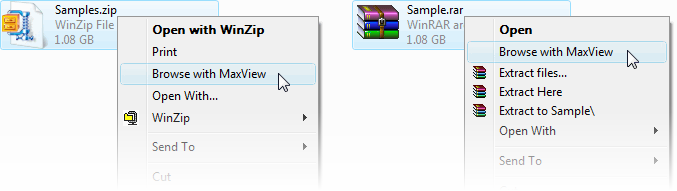
In Windows Explorer, right click the archive file and choose Browse with MaxView from the popup menu.
-
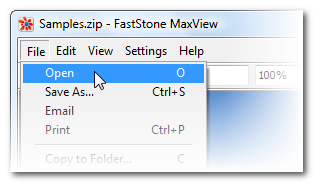
In MaxView, choose File -> Open. A dialog appears so you can locate and open the archive file.
-
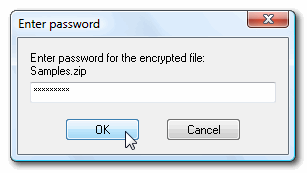
If the archive is encrypted, MaxView supports 128-bit and 256-bit AES encryption and will prompt you for the correct password before viewing the photos.
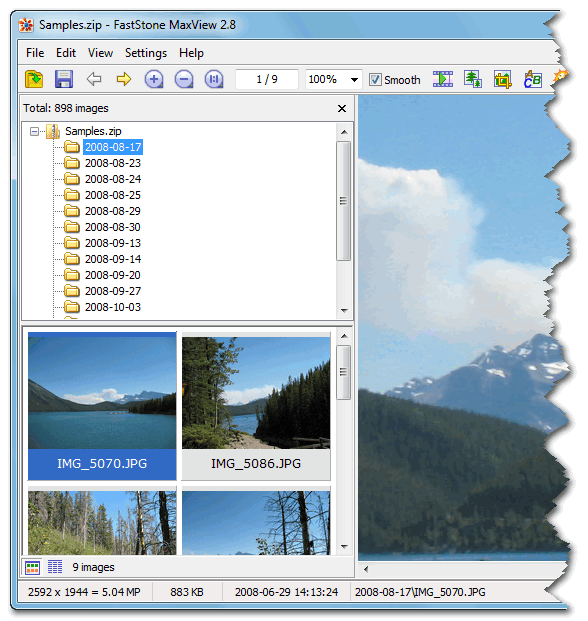
- Once opened, the archive folder structure and thumbnail list appear on the left side of the window. You can zoom, scroll and even run a full-screen slideshow with music. When finished, simply close MaxView and it leaves nothing behind for others.
Preview