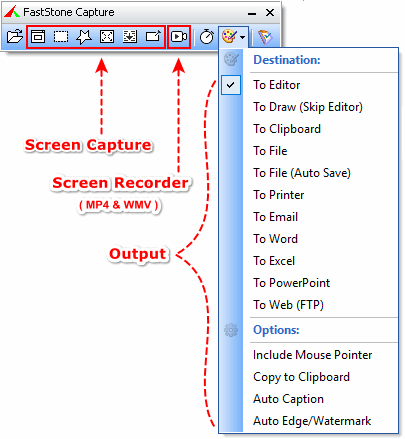
- A handy Capture Panel that provides quick access to its capture tools and output options
- Capture windows, objects, menus,
full screen, rectangular/freehand/fixed-size
regions and scrolling windows/web pages
- Capture multiple windows and
objects including multi-level menus
- Capture text from images or
screenshots using OCR (Optical Character Recognition)
- Pin screenshots on top of other windows, like sticky
notes
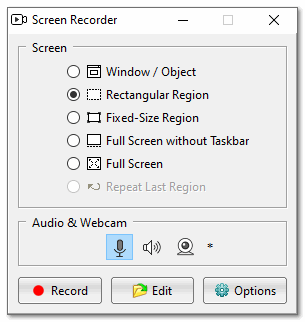
- Record screen activities including
onscreen changes, speech from microphone, audio from speakers,
webcam, mouse movements and clicks into highly compressed video files
(MP4 and WMV)
- Schedule recordings using a timer
- Screen Recorder has a built-in video editor
that allows you to draw annotations, apply zoom effects and cut
unwanted sections. Videos can be converted to animated GIF
- Screen Recorder provides a "Convert
to MP4" tool that converts or resizes video files (MP4 and WMV)
under various resolution and quality options
- Options to specify output destination
(internal editor, clipboard, file, printer ...)
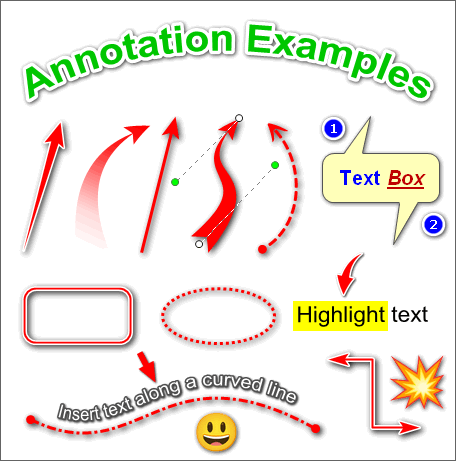
- Draw annotation objects such as callouts, straight/curved
text,
arrowed lines, highlights, watermarks, rectangles, circles, step numbers,
emojis and much more
- Apply effects such as spotlight, drop-shadow, frame, torn-edge and fade-edge
|
- Blur selected area
- Add image caption
- Resize, crop, rotate, sharpen, brighten,
adjust colors
- Undo/Redo
- Support tabs that allow you to capture and edit
multiple screenshots simultaneously
- Organize and group tabs in multiple
workspaces (optional). Each workspace remembers its last-used folder and works like a separate instance of the internal editor
- Support external editors
- Save images in BMP, GIF, JPEG, PCX, PNG, TGA, TIFF,
WEBP and PDF
formats
- Save images in FSC (FastStone Capture) format, a
proprietary and loss-less format that preserves annotation objects together with image data for future re-editing
- Save videos in MP4 and WMV formats
- Acquire images from scanner
- Convert images into a single PDF file
- Combine images into a single image file
- Print multiple images in batch mode
- Send captured images by email
- Send captured images to OneNote, Word,
Excel and
PowerPoint documents
- Send captured images to a Web (FTP)
server
- Auto capture screen repeatedly at user-specified time intervals
- Screen Color Picker
- Screen Magnifier
- Screen Crosshair
- Screen Focus
- Screen Ruler
- Support multiple monitors
- Support high-DPI/high-resolution/4K monitors
- Support touch interface (tap, swipe, pinch)
- Global hotkeys to activate screen
capturing instantly
- Run when Windows starts (optional)
- Minimize to notification area
- Small footprint in memory
- And much more ...
|
|
|
|
|
|
|
History |
|
|
|
Version
11.2 (November
28, 2025)
|
- Fixed a bug in Draw where using the Eraser or drawing lines could
create unwanted pixel noise
|
|
Version
11.1 (October
07, 2025)
|
- Improved Open and Save dialogs with a
modern design
- Added border style option to Caption tool
- Added "Allow very small captures (5x5 pixels or smaller)"
option to Settings -> Capture
- Added shortcut Ctrl + 0 to
reset image zoom to 100%
- Updated Step tool in Draw to
support up to 3 digits (0 - 999)
- Improved native skin (When
Classic Skin is turned off) in FastStone Editor on Windows 10/11
- Enhanced Email support for Unicode
file names
- Other improvements and bug fixes
|
|
Version
11.0 (January
16, 2025)
|
- Added "Transparent background"
option to Edge tool
- Added "Delete File" (Ctrl+Del)
to editor's File menu
- Enhanced support for multi-monitor
systems
- Enabled copying and pasting transparent images directly via
Clipboard
- Updated Caption tool to fully display
long text, such as URL links
- Caption tool headers now brighten
on dark backgrounds
- Other improvements and bug fixes
|
|
Version
10.9 (November
28, 2024)
|
- Added support for multiple desktops
in Windows 10/11
- Other improvements and bug fixes
|
|
Version
10.8 (October
14, 2024)
|
- Enhanced "Pin to Screen"
- Added "Text Box" in Draw Mode
- Added "Press Spacebar to" (Hide at Top, Actual Size, Draw Mode) to Options
- Added "Send to Editor" (Current Image, All Images) to right-click menu
- You can now hold the Ctrl key and
drag your mouse along the borders to quickly expand or
shrink the image canvas
- Added "Copy to Clipboard" to
"Combine" tool preview
- Added "Sharp YUV (Slower
but higher quality)" option to WebP format
- Other improvements and bug fixes
|
|
Version
10.7 (August
20, 2024)
|
- Added "Close Saved Tabs"
(Ctrl+Q) to "Tabs" menu in the editor
- Added a drop-down history list
to "Settings" -> "Auto Save"
-> "Output folder"
- Increased blur effect for Spotlight
- Enhanced "Pin to Screen"
- Added "Auto-Open Draw Mode" option
- Added "Press Enter
to" (Copy and Close, Save and Close, none) option
- Other improvements and bug fixes
|
|
Version
10.6 (July
10, 2024)
|
- You can now add Steps(1,2,3...)
in "Draw Mode" of "Pin to Screen"
- Added a right click menu to
title area of capture toolbar
- Enhanced "Capture Text"
to process larger (more than 10000x10000 pixels)
images
- Enhanced "Screen Recorder"
- Added "Set computer to sleep mode after recording is
complete" option to scheduled (via a timer) screen
recordings
- Added right click menu to
Microphone and Webcam icons
- If mouse cursor is invisible in
screen video, prevent cursor highlighter
from showing
- Other improvements and bug fixes
|
|
Version
10.5 (May
22, 2024)
|
- Added "Pin to Screen".
This feature allows you to pin and annotate screenshots
on top of other windows, like
sticky notes. Benefits include:
- Reference Convenience: If you're working on a task that requires you to refer back to a screenshot frequently, having it pinned on your screen could save you from switching windows or applications constantly.
- Efficient Comparisons: When you need to compare
data between applications, pinning a screenshot can make it easier to view both sets simultaneously without needing a second monitor.
- Visual Reminders: Pinned captures
can serve as visual reminders for tasks that need to be completed,
or information that needs attention, reducing the chance of forgetting important details.
- Added "Capture Text".
Instead of manually typing text from a screenshot, this feature can
extract the text and make it editable instantly, saving time and
effort. It requires Windows 10/11.
- Other improvements and bug fixes
|
|
Version
10.4 (December
26, 2023)
|
- Enhanced Screen Recorder:
- Simplified the Start Recording window.
Switch between simplified mode and detailed mode with just a single
click
- Enable/disable devices like Microphone, Speaker, and Webcam directly
within the Start Recording window
- Enhanced Eraser in Draw tool:
- Show a circular cursor to indicate the area to be erased.
- Right click mouse to pick a
screen color
- Scroll mouse wheel to adjust eraser size
- Enhanced the Save dialog in the
Scan tool with improved functionality and user interface.
- Added "Save All (same name)" option
(Ctrl+Alt+S) to the File menu in FastStone Editor, allowing you to save multiple images with the same name and a sequential number
- Other improvements and bug fixes
|
|
Version
10.3 (November
01, 2023)
|
- Enhanced Screen Recorder:
- Audio indicator is
displayed on the control bar during screen recording
- In video editor, auto-preserve
annotation objects for re-editing after editor is closed
- Enhanced Draw tool:
- Increased maximum font size
of text objects to 200 pt
- Text input box is resizable
- Image and Emoji objects can be flipped
and rotated (left/right)
- Added 3D arrows to Emoji
list
- Enhanced window border
capturing on Windows 10/11
- Now it is possible to:
- Use Ctrl+Click to
select and open multiple recent files
- Add MS Paint as an external
editor on Windows 11
- Other improvements and bug fixes
|
|
Version
10.2 (July
05, 2023)
|
- Fixed a bug that caused audio
noise in Screen Recorder
|
|
Version
10.1 (June
30, 2023)
|
- Added a Timer option to Screen
Recorder. Users can schedule recordings by
specifying Start/End times
- Added "Select focus area" option
to Screen Focus tool. Users can press Ctrl+Shift
to select screen area to focus on
- Added support for Webp
format
- Other improvements and bug fixes
|
|
Version
10.0 (May
09, 2023)
|
- Enhanced Screen Recorder:
- Added Webcam option to
include webcam in recordings
- Added "Microphone Settings"
and "Webcam Settings"
- Added "Extract Audio ..."
menu with support for M4A and MP3
- Added "Press Esc to close
main window" to Options -> Hotkeys
- Added "Auto-boost volume
when recording speakers" to Options -> Audio
- Removed requirement for a physical
microphone when recording speakers
- Added "Acquire Images from
Scanner" to built-in editor
- Other improvements and bug fixes
|
|
Version
9.9 (February
03, 2023)
|
- Use MP4 as the default output
format for Screen Recorder on Windows 10/11
- Added "Convert to MP4"
to Screen Recorder. You can use it to convert or resize video files (WMV
and MP4) using the new MP4 format
- Now Screen Recorder can detect
and recover a screen recording from an unexpected Windows
shutdown or restart
- Enhanced the built-in video editor:
- Added a Title Page tool
which allows you to insert title pages anywhere in the video clip
- Added Emoji to the Draw
tool
- To trim a video clip,
simply click and drag from the beginning or end of the timeline
- In Screen Recorder's Options
-> Notifications tab, you can customize the color and size
of the control bar
- Fixed a position error in zoom mode of
Draw tool
- Other improvements and bug fixes
|
|
Version
9.8 (December
22, 2022)
|
- Enhanced Draw tool
- Zoom In / Out
in Draw tool from 1% to 5000%
- Double click on an emoji
image to popup the emoji list
- Enhanced Custom Scroll Mode of Capture
Scrolling Window. Now you can capture any part of a scrolling
window even without a vertical scroll bar
- Added option "If draw objects exist, auto-save a copy in FSC format for re-editing"
to Settings -> Editor
- Added Save As (Alt+S) command to Editor
- The Save (Ctrl+S) command in
Editor only prompts for a file name when necessary (i.e. the image does not have a file name)
- The Save All (Ctrl+Shift+S) command in
Editor only asks for confirmation once to save all the files
automatically
- In Editor, added Statistics
command to the right click menu on selections. This command
calculates the total number of pixels and unique colors within the
selected area
- In Resize tool, added shortcuts
for 25% (Ctrl+1), 50% (Ctrl+2), 75% (Ctrl+3) and 200%
(Ctrl+4)
- Enhanced Screen Ruler
- Added Protractor
- Screen Ruler can be used in Editor mode and
Draw mode by launching it from tray icon menu
- When capturing a rectangular or
freehand region, press Ctrl+Z to re-select or undo
previous step. In Editor, press Ctrl+Z to undo previous step in
"Freehand 2" selection mode
- Added Auto Date Time Stamp to
the list of Output Options. In Editor, you can add a date time stamp
to the image by pressing J key
- Most icons on capture
toolbar are customizable (on/off) in Settings -> Toolbar
- Enhanced Screen Recorder:
- When recording full screen,
the yellow control bar is always visible but not
recorded in the video
- Used icons instead of a
drop-down list for selecting audio inputs (microphone and
speaker)
- Added a popup menu to the Edit
button to Open / Open Last File Location / Play Last File
- Other improvements and bug fixes
|
|
Version
9.7 (September
10, 2021)
|
- Introduced a new image format called FastStone
Capture format (*.fsc). This loss-less format preserves annotation
objects together with image data for future re-editing
- Added "Filled Polygon"
and "Emoji" to the Draw tool
- Improved reliability and performance of "Capture
Scrolling Window"
- Added Language option to the
Settings
- Other improvements and bug fixes
|
|
Version
9.6 (June
21, 2021)
|
- Added option "Show Button
Captions" to the internal editor to show/hide captions on the
toolbar. This option can be accessed under the Settings menu of the editor
or by right-clicking on the editor's toolbar
- Added capability of "right-click
to pick screen color" to all color boxes in the Draw tool
- Added "Rename (F2)"
to:
- The internal editor
- The "Combine images into a single image
file" tool
- The "Convert images into a single PDF
file" tool
- The Print dialog
- Enhanced multi-language support
- Other improvements and bug fixes
|
|
Version
9.5 (May
18, 2021)
|
- Translated user interface into 12
languages including Bulgarian, Simplified Chinese, Traditional
Chinese, Czech, Dutch, French, German, Japanese, Korean, Polish,
Russian and Ukrainian
- Improved reliability and performance of "Capture
Scrolling Window"
- Enhanced "Fill with Color"
in Draw tool. Now you can select a screen color by right-clicking
- Enhanced Screen Color Picker
- Enhanced Screen Recorder:
- Auto detect and switch to active
speaker when recording speaker
- Added confirmation window
when discarding current recording
- Fixed a bug that fails to start
recording on external monitors
- Fixed a bug that fails to cut
videos
- Improved support for 4K monitors
- Other improvements and bug fixes
|
|
Version
9.4 (August
21, 2020)
|
- Added OneNote as an output option
- Added 3 options to Editor tab of
Settings:
- "Set default tool in
Draw"
- "Highlight active tab"
- "Use workspaces to group
tabs". This option allows you to organize and group captured images (tabs) in multiple workspaces. Each workspace remembers its last-used folder and works like a separate instance of FastStone
Editor
- Added "Stay on Screen" and
"Minimize to System Tray" options to "Run when Windows
starts"
- Added "Send to New Tab" (Alt+C)
to duplicate the current tab as a new tab
- Added a count down text box to
"Delay before Capture"
- Added Apply button to Settings window
- Added 2 icons (left/right clicks) to
"Insert Mouse Pointer" in Draw tool
- Enhanced "Save As" and
"Open" dialogs:
- Added "Hold Alt key to peek
behind this window" option to "Save As" dialog
- Resizable
- Size and position are kept for
next use
- Added "Delay before showing"
option (click [...] in Toolbar tab of Settings) for the hidden toolbar
- Added preview option to
"Spotlight" effect
- Added a right-click menu to
"Capture Fixed-Size Region"
- Added Contrast and Gamma
auto-adjustment to "Acquire Images from Scanner". Enhanced
the De-skew algorithm
- Added tips for the toolbar buttons of
FastStone Editor
- In Draw tool, press Tab/Shift+Tab
to cycle through drawing tools
- Enhanced "Screen Color
Picker". After picking a screen color, click the
"New" color box to fine tune the color
- Enhanced Print dialog. Now you can:
- Print multiple images in batch
mode
- Print file name in the
header area
- Enhanced Edge/Watermark. Watermark
image is resizable
- Enhanced "Make Background
Transparent" (Ctrl+T) by adding 3 options: Preview, Tolerance and
Anti-aliased
- Enhanced "Fill with Color"
in Draw tool by adding 2 options: Tolerance and Transparent Fill
- Optimized loading speed of Draw tool. Now it
re-opens much faster
- Many other minor improvements and bug fixes
|
|
Version
9.3 (November
19, 2019)
|
- Enhanced Draw tools
- Added Indent option to Highlighter
- Added Shape option to Line
Highlighter
- Added Bracket tool
- Added Blur tool
- Improved image quality of Magnifier
- Other minor improvements and bug fixes
|
|
Version
9.2 (September
12, 2019)
|
- Enhanced Draw tools
- Added Border option to Highlighter
- Added Highlight option to
Magnifier
- Added left/right
click option when Mouse Pointer inserted
- Smoother Pencil and
enhanced L-Line
- Draw tools load faster
- Added Classic Skin option to Editor
under its Settings menu
- Added a new method (by entering
diagonal length of screen) to calibrate Screen Ruler
- Other minor improvements and bug fixes
|
|
Version
9.1 (July
30, 2019)
|
- Added a Clone tool (press C key
to open) to the internal editor
- Added more preset colors for text boxes in Draw
- During rectangular region capture, you can
switch corners by pressing Tab key
- Improved support for touch
screens and high-resolution screens
- Improved compatibility with various scanners
- Improved number and letter stamps
- Optimized Window / Object
capture
- In the editor, press Ctrl+S to open
Save dialog, press Ctrl+S again to confirm (No need to
click Save button)
- Many other minor improvements and bug fixes
|
|
Version
9.0 (June
15, 2018)
|
- Added "Auto Screen
Capture", which automatically and repeatedly captures the
screen at user-specified time intervals
- Added "Auto-Send to Clipboard"
option to the right click menu in Screen Ruler. This option
sends measurements to Clipboard automatically
- Other minor improvements and bug fixes
|
|
Version
8.9 (March
20, 2018)
|
- Added "To Draw (Skip Editor)"
as a new output destination option
- Added "Print" button
to Draw tool
- Enhanced Window/Object Capture
function on Windows 10
- Other minor improvements and bug fixes
|
|
Version
8.8 (February
16, 2018)
|
- Enhanced Draw tool by adding:
- Oval Text Box
- Magnifier
- 3 options (Rectangle, Round
Corners and Oval) for Highlighter
- Preset colors for all annotation
objects
- Added "Delay before Capture"
option to Capture Panel. A delay timer can be used to capture
drop-down/pop-up menus
- Other minor improvements and bug fixes
|
|
Version
8.7 (November
28, 2017)
|
- Enhanced Draw tool. Now you can:
- Draw curved text
- Insert text along a curved
line (Right-click on the line and select "Insert Text")
- Draw fancy lines (10
styles)
- Apply an Outline effect to
lines, rectangles and ellipses
- Added an option (Use @ in file name
template) to generate random characters (0-9,a-z,A-Z) in file names.
See "File Name" tab in the Settings
- Other minor improvements and bug fixes
|
|
Version
8.6 (August
23, 2017)
|
- Added an audio indicator to
Screen Recorder
- Added resizing handles to the "Acquire Images from Scanner" tool
- Standard sizes for fixed-size
region are customizable
- Converts multi-page TIFF file
to PDF file
- Improved support for 4K monitors
- Other improvements and bug fixes
|
|
Version
8.5 (May
08, 2017)
|
- Enhanced rendering quality of
annotations in Draw tool
- Added 4 different dash styles
to lines in Draw tool
- Added 4 resizing handles to the
corners of captured images
- Added a sub-menu under the Open button
in Editor for fast access to recent files
- Optimized video recorder for
better CPU utilization
- Improved support for high-resolution
monitors
- Other improvements and bug fixes
|
|
Version
8.4 (January
14, 2016)
|
- Added support for high-DPI/high-resolution/4K
monitors
- Added a tool called Screen Focus,
which helps you stay focused on the task under the mouse pointer by
dimming the rest of the screen
- Added an option to show file names
to the output of the "Join Images Side by Side" tool
- Added "Adjust Lighting"
to the Colors menu
- Enhanced the Resize tool so you
can resize the image based on pixels or percentage
- Enhanced the Screen Color Picker.
Now you can:
- Press Space/+/- key to zoom in/out.
Picking a color from an enlarged image is easier
- Specify prefix and suffix to customize
the format of RGB, Dec and Hex values
- Enhanced the "Acquire Images from
Scanner" tool by allowing you to adjust the colors and
lighting of scanned images
- Other improvements and bug fixes
|
|
Version
8.3 (October
14, 2015)
|
- Added support for unicode filenames throughout the software.
Screenshots can be saved in different types of characters (e.g. Arabic, Chinese, Greek, Japanese, Korean, Russian ...)
- Added "Eye Dropper"
to all color dialogs
- Added "Pixelate" as a
new option for blurring images
- Improved the "Capture Scrolling
Window" tool. Now it supports Microsoft Edge browser in
Windows 10
- Improved the "Draw" tool.
Both number and letter stamps can be used on screenshots
- Other improvements and bug fixes
|
|
Version
8.2 (April
27, 2015)
|
- Minor improvements and bug fixes
|
|
Version
8.1 (March
31, 2015)
|
- Added "Follow mouse pointer"
option to the screen recorder,
which enables the recording region to follow the movement of the mouse pointer
- You can also move the recording
region by dragging its borders
- Added hotkey F5 to zoom in/out
while recording a screen video
- Added Quality options to the Audio
tab of the screen recorder
- Added "Close tab by
double-clicking on tab name" to the Editor tab of FastStone
Capture's Settings
- Now you can put more buttons on
the capture toolbar
- Other improvements and bug fixes
|
|
Version
8.0 (December
19, 2014)
|
- Added "Fixed-Size Region"
to the screen video recorder
- Added animated GIF converter to
the screen video editor. This allows you to convert your screen videos
to animated gif files, which are supported by most web browsers
- Now you can drag and move the
yellow control bar for screen video recording
- Other minor improvements
|
|
Version
7.9 (July
29, 2014)
|
- Added "Polyline" and
"Insert Mouse Pointer / Icon" to the Draw tool
- Added "Remove Strip / Insert
Strip" to the right-click menu on a selected area
- Added "Lock Toolbar Position"
option (a pin icon) to the new capture toolbar activated from the editor. This
will lock the toolbar position for next use
- Now, you can join images
together into a new tab directly. In previous version, it is required
to save the file first
- Other minor improvements
|
|
Version
7.8 (June
18, 2014)
|
- Added support of tabs to the
editor. This allows you to capture, open and edit multiple screenshots simultaneously
- Added New and Save All
commands to the File menu of the editor
- Added Tools menu to the editor.
Now you can save multiple screenshots as a PDF file or combine
multiple screenshots into an image within the editor
- Added a hotkey option to the
Settings to activate the Capture toolbar if it is hidden
- Many small improvements and bug fixes
|
|
Version
7.7 (February
07, 2014)
|
- Now you can use drag-and-drop to move
(copy when Ctrl key is down) selected area
- Added two new selection methods
- Added Undo/Redo buttons on the menu bar of the editor
- Added Spotlight effect
- Many small improvements and bug fixes
|
|
Version
7.6 (July
26, 2013)
|
- Added "Screen Crosshair".
It displays two full-screen intersecting lines (crosshair) on the
screen with a magnifier showing the details of the area around the
mouse pointer. You may find it helpful to align screen objects,
compare chart or tabular data and underline the text you are reading
- Added "Join Images Side by
Side". You can use it to combine multiple images into a
single image file
- Added option "Show resizing
handles on image borders" to the Settings (in Editor tab). By
dragging the resizing handles, you can remove unwanted borders or add
blank space to the image easily and precisely
- Added option "Copy captured
image to Clipboard automatically" to the Settings (in Capture
tab). Check this option if you want to send a copy of the captured
image to Windows Clipboard automatically every time you make a screen
capture
- Added a "Reset"
button to the Settings window so you can reset your settings to their
default values
- Improved "Video Editor"
- Added "Step Forward"
and "Step Backward" for navigation between video
frames
- Fixed a bug: some part of video frames are black when viewed in the video editor
- Improved "Screen Ruler"
- Other minor improvements and bug fixes
|
|
Version
7.5 (June
03, 2013)
|
- Enhanced the Draw tool
- Now you can draw both straight
and curved lines using the Line tool
- Added 10 styles to the Line and Pencil
tools
- Added Number Stamp
- Added Eraser
- Added L-Line
- Added "Align" (top,
left, right, bottom, width, height and size) to the right-click menu on
multiple objects
- Enhanced "Select Canvas".
Now you can crop, blur, copy, cut, paste and delete a selected
area. You can even fill it with a screen color
- Now you can select multiple
objects and change their attributes as a group
- Added "Print" tab to the Settings. Now you have an option to
print directly to the default printer without showing the Print dialog
- Added Drop Shadow option to
the Reflection tool under Effects menu
- Enhanced the video editor of
the built-in screen video recorder
- Other minor improvements and bug fixes
|
|
Version
7.4 (March
14, 2013)
|
- Supports touch interface
- Added 2 new options in the Settings:
- "Auto-hide capture toolbar when it reaches the top of the
screen"
- "Bigger buttons on capture
toolbar"
- Improved the Print dialog
- Improved the "Fixed Region"
capture tool: now you can press Shift + arrow keys to adjust
the width and height of the fixed region
- Added a hotkey for "Import from Clipboard" in the Hotkeys tab of the Settings
- Now it is possible to use the screen capture and
screen recorder at the same time if you disable the new option "Hide Toolbar when using Screen Recorder" in the Settings
- Now you can preview the fonts in the font list of the Draw tool
- Added a "Blur" button
in the image editor
- Added a "Save" button to the Email window when "To Email" is selected as the Output destination
- Added an option to adjust the volume
of mouse
click sound for the screen recorder
- Supports output to Excel
- Other minor improvements and bug fixes
|
|
Version
7.3 (September
17, 2012)
|
- Improved the screen recorder:
- Added an option (for Vista,
Windows 7 and 8) to record audio from both microphone and
speakers at the same time
- Added an option to repeat the last
screen recording
- Improved the video editor. Now
you can:
- Remove unwanted sections from a
screen video
- Save a video frame to a file or
copy it to Clipboard
- Drag and drop a video file onto
the screen recorder's panel to open it in the video editor
- Improved the Auto Caption tool
- Improved compatibility with Windows 8
RTM
- Other minor improvements and bug fixes
|
|
Version
7.2 (June
29, 2012)
|
- Added a video editor to the
screen recorder, which allows users to add annotation objects (texts,
arrows, rectangles, circles, etc.) and zoom effects to screen
video files
- Improved the "Capture Scrolling
Window" tool
- Improved compatibility with Windows 8
RP (Release Preview)
- Other minor improvements
|
|
Version
7.1 (April
20, 2012)
|
- Enhanced the built-in screen recorder
- Added Pause / Resume
support
- Added an option (for Vista,
Windows 7 and 8 only) to record computer speakers (what you
hear) directly
- Improved performance to
reduce the number of lost frames
- Enhanced the Print dialog. Now
it is possible to
print both header and footer
- Improved the "Capture Scrolling
Window" tool
- Improved compatibility with Windows 8
CP (Customer
Preview)
- Other improvements and bug fixes
|
|
Version
7.0 (September
28, 2011)
|
- Improved the "Draw"
tool:
- Now it is possible to draw same
kind of objects continuously without having to select the drawing
tool again and again
- Ctrl+S shortcut to the OK
button
- Ctrl+MouseWheel to zoom in/out
- Zoom up to 400% instead of 200%
- Improved "Acquire Images from
Scanner"
- Combined color adjustment tools into
one comprehensive tool: "Adjust Colors"
- Added more effects: Reflection,
Oil Painting and Sketch
- Added "Recent Files"
list for quick access to recently used files
- Added some shortcuts to the editor:
- Press Z key to zoom selection
- Press W key to open containing
folder if the file exists
- Press I key to view file properties
if the file exists
- Added more options to the "Editor"
section of the Settings
- Added more options to the "Screen
Magnifier" section of the Settings
- Added "Rotate by Any
Degree"
- Supports custom colors in all
color picking dialogs
- Other minor improvements and bug fixes
|
|
Version
6.9 (May
26, 2011)
|
- Added "Acquire Images
from Scanner". It supports batch scanning to PDF, TIFF, JPEG and
PNG.
It
allows users to rotate, crop, deskew, annotate and save scanned images
directly within this tool
- Added "Capture Fixed-Size
Region"
- Added "Repeat Last Capture"
- Now it is possible to use drag-and-drop
to open an image in the internal editor
- Added "Fit to Width"
(press K) option to the internal editor
- Other minor improvements and bug fixes
|
|
Version
6.8 (April
26, 2011)
|
- Improved the "Capture Scrolling
Window" tool. Now it is compatible with the latest version of
popular web browsers: Internet Explorer 9, FireFox 4, Chrome
10, Opera
11 and Safari 5
- Minor improvements and bug fixes
|
|
Version
6.7 (September
06, 2010)
|
- Improved PDF output. Now it is
possible to specify Page Size, Quality, Margins and Orientation when
saving in PDF format. Lengthy document is divided into multi-pages
automatically
- Added a tool called "Convert
Images to a PDF file" to allow users to convert images to multi-page PDF file
- Added "Expand Canvas"
to the Draw tool
- Added "Blur" to the
right-click menu of the Draw tool when part of the image is
selected
- Assigned keyboard shortcuts to
drawing tools. For example: press F1 for Text, press F2 for Straight
Line, press F3 for Pencil etc.
- Added an option to the Settings to
allow users to specify which screen (active or all) to capture when
making Full Screen Capture in multi-monitor system
- Fixed minor bugs
|
|
Version
6.6 (June
25, 2010)
|
- Improved the Draw tool. Now it
is possible to:
- Add outward-pointing tails to text
objects
- Copy/cut/past annotation objects
and areas of the canvas
- Fill with color
- Undo / Redo
- Zoom In / Zoom Out
- Added "Custom Scroll Mode"
to the "Capture Scrolling
Window" tool. Custom Scroll Mode allows users to capture any
part of the screen that scrolls vertically
- Added "Screen Color Picker"
to the Editor's Colors menu
- Added option "Show capture
buttons in editor" to the software Settings
- Now it is possible to make
annotation directly in the Email tool
- Supported variables %COMPUTERNAME%
and %USERNAME% in File Name Template
- Supported variables %MYDOCUMENTS%
and %MYDESKTOP% in the path of "Auto Save" output
folder
- Some other improvements and bug fixes
|
|
Version
6.5 (July
03, 2009)
|
- Improved Capture Window / Object
- Improved Print dialog
- Fixed a bug in Capture Scrolling
Window
|
|
Version
6.4 (June
29, 2009)
|
- Added "Insert Title Clip at
the beginning of the video" option to the Screen Recorder
- Improved the Print dialog box:
- Add page number, date and time to
footers
- Specify the number of copies to
print
- When printing a multi-page
document, it will try to avoid breaking the bottom text
line between two pages (i.e. text line is partially printed on the
current page and the next page).
- Added "Apply Edge Effects"
option to the "Expand Canvas" tool
- Added "Auto-reset to 1 upon a
new day" option to file name template "$Y-$M-$D_#####"
- Added "Color Subsampling"
option for saving JPEG files
- Enhanced Pencil and Line
Highlighter of the Draw tool: Hold Ctrl key down to draw straight
horizontal lines
- Improved compatibility with Windows
7
- Improved compatibility with IE 8,
FireFox 3 and Google Chrome
- Some other improvements and bug fixes
|
|
Version
6.3 (October
15, 2008)
|
- Records screen activities including
onscreen changes, speech from microphone,
mouse movements and clicks into highly compressed video files (Windows Media
Video
format).
This feature works on Windows XP, 2003, Vista and 2008
- Captures web pages of the latest
web browsers:
- Allows you to save a local copy
when sending captured images to a Web (FTP) server
- Fixed minor bugs
|
|
Version
6.2 (May
07, 2008)
|
- Some UI improvements and minor bug fixes
|
|
Version
6.1 (April
21, 2008)
|
- Now it runs on both 32-bit and 64-bit
Windows
- Annotation objects (texts, lines,
boxes etc.) can be re-edited by re-opening the Draw tool
- Added auto-expand feature to
text objects as you type in them
- Maintain aspect ratio when
resizing watermark images in Draw tool
- Added "Preview in Editor"
as an output option, which allows you to edit the captured image before
sending it to the specified destination such as clipboard, printer,
email etc.
- Improved "Capture Scrolling
Window". Now it supports Internet Explorer 8 Beta
- Improved Print dialog
- Added option "Ask me to save
changes before closing" to the Editor tab of the Settings
- Some UI improvements and bug fixes
|
|
Version
6.0 (February
13, 2008)
|
- Added Line Highlighter to
"Draw" tool
- Added "Blur" option
to Line and Rectangle Highlighters
- Enhanced "Text"
in "Draw" tool. Now shadowed text is possible
- Added "To Web (FTP)"
as an Output option
- Enhanced Screen Ruler
- Added "Pick Another Color"
button to Screen Color Picker
- Used tabs to group options in
"Settings" window
- Some UI improvements and bug fixes
|
|
Version
5.9 (November
26, 2007)
|
- Support capture of multiple windows
and objects including multi-level menus (Use Ctrl key in
"Capture Window / Object")
- In the internal editor, Caption
can be modified now
- Some UI improvements and bug fixes
|
|
Version
5.8 (October
05, 2007)
|
- Enhanced "Save As"
dialog. Now the preview window is updated automatically instead of
requiring users to click on the "Update Preview" button
- Enlarged preview windows in
rectangle capture mode and freehand capture mode
- Other small improvements in the user
interface
|
|
Version
5.7 (September
12, 2007)
|
- Added option "Convert to 256 colors if output is Clipboard, Word or
PPT" to the Settings window
- Added "Color" menu to
the internal editor, which can be used to count and reduce the number of colors of the
screenshot
- Added "Obscure (Blur)" tool under "Effect" menu, which can be used to obscure sensitive information on the
screenshot
- Added option "Frame" to the Edge/Watermark tool
- Added "Screen Ruler", which can be used to measure the sizes and distances of objects on the
screen
- Fixed some bugs
|
|
Version
5.6 (June
25, 2007)
|
- Added "Send to Word" and
"Send to PowerPoint". Now it is possible to send
screenshots to Microsoft Word and PowerPoint directly
- Added option "Copy to
Clipboard" to "Auto Save" section in the Settings
- Improved usability of menus
- Fixed some bugs
|
|
Version
5.5 (May
23, 2007)
|
- Added option "Negative"
to the Screen Magnifier, which allows users with low vision to see a
magnified color-reversed screen
- In the Screen Magnifier, now it is
possible to pan around the magnified screen with arrow keys
- Added "Reset Capture Panel
Position" to the right-click menu of the system tray icon
|
|
Version
5.4 (May
14, 2007)
|
- Added Fade Edge effect. Now edge effects can be applied to
4 edges instead of only 2 in previous versions
- Supports external editors
("Edit With" list in the FastStone Editor), which allows you to edit the captured screenshot
with specified external editors. This feature enables you to add
virtually unlimited editing capabilities to the program
- Added option "Open in External
Program" to "Auto Save" section in the Settings, which allows you to open the captured image in a specified program automatically
- Enhanced the Screen Magnifier
- Solved some compatibility issues in Windows Vista
- Fixed some bugs
|
|
Version
5.3 (February
12, 2007)
|
- Compatible with Windows Vista
- Improved quality of 256 color
PNG/GIF output
- Added To Email to the Output
list
- Added Reset to Primary Screen (only
available in Multi-monitor
system) to the tray icon's popup menu
|
|
Version
5.2 (January
16, 2007)
|
- Added Scroll Refresh Time in
the Settings
- Added option (in the Settings) to show
Open File in Editor icon on the Capture Panel
- Added Download Tutorial link
|
|
Version
5.1 (January
06, 2007)
|
- Added Make Background Transparent
under Edit menu
- Added options in the Settings
to show/hide Screen Magnifier and Screen Color Picker on
Capture Panel
- Added Bring to Front/Set to Back to
the right-click menu in Draw tool
- Changed hotkey for Draw tool
from T to D
|
|
Version
5.0 (January
03, 2007)
|
- Enhanced / Simplified the User Interface
- New Effects: Drop shadow, torn-edge
- Comment Tool
- Improved the Draw tool
- Fixed some bugs
|
|
Version
4.8 (November
10, 2006)
|
- Improved the Draw tool
- Now it is possible to input double-byte
characters such as Chinese, Japanese, Korean, Russian in the Draw
tool
|
|
Version
4.7 (October
26, 2006)
|
- Completely new icon design
|
|
Version
4.6 (October
10, 2006)
|
- Added Adobe PDF format to the output
list
- Added "Rotate", "Canvas Size",
"Expand Canvas Size", "Sepia",
"Negative" under Edit menu
- Now it is possible to specify the
selection size under Edit menu
- Added "Send File Dropped on Capture Panel to"
option in the Settings. So it
is possible to drag and drop a file from Windows Explorer to the
floating Capture Panel and immediately edit it in the internal editor
- Fixed a bug in the Email dialog
|
|
Version
4.5 (October
2, 2006)
|
- Added "Auto-Divided" option for
long document printing. In the print window, it is possible to divide
a long/wide captured image (long scrolling web page for example) into
multiple pages
- Added more editing tools (rotate,
color adjustments, sharpen/blur) under Edit menu
- Fixed minor bugs
|
|
Version
4.4 (September
26, 2006)
|
- Enhanced Capture Scrolling Window,
now it is possible to capture full scrolling window (with horizontal and
vertical scrollbars)
- Fixed minor bugs
|
|
Version
4.3 (September
18, 2006)
|
- Added Open File button on
Capture Panel and editor Toolbar
- Enhanced Screen Magnifier
- Fixed minor bugs
|
|
Version
4.2 (July
15, 2006)
|
- Added DPI and Printer
options in the Settings
- Fixed a bug in the popup menu of the
tray icon
|
|
Version
4.1 (July
13, 2006)
|
- Fixed a bug in the Print dialog
|
|
Version
4.0 (July
10, 2006)
|
- Added Screen Color Picker on
Capture Panel
|
|
Version
3.9 (July
02, 2006)
|
|
|
|
Version
3.8 (June
20, 2006)
|
- Added "Capture Active Window"
- Fixed some bugs
|
|
Version
3.7 (June
20, 2006)
|
|
|
|
Version
3.6 (June
16, 2006)
|
- Added option "Close FastStone
Editor when Captured Image is saved" in the Settings
- Fixed a bug in the hotkey handler
|
|
Version
3.5 (June
15, 2006)
|
- Made some enhancements to the GUI of
the internal editor;
- Added a "Smooth" option in
the Settings for the Screen Magnifier;
- Fixed some bugs
|
|
Version
3.4 (June
12, 2006)
|
- Added a feature that allows you to
drag & drop images from Web browser or Windows
Explorer onto the Capture Panel to view them in Full Screen;
- Fixed some bugs
|
|
Version
3.3 (June
09, 2006)
|
|
|
|
Version
3.2 (June
07, 2006)
|
- Added some options in the Settings
|
|
Version
3.1 (June
05, 2006)
|
- Added option Filename Template in
the Settings that allows the user to customize how file names are
generated by the software
- Added option Automatic file generation when "To File" is selected
in the Settings - Captured images are saved in the specified Output Folder / Output Format without showing the Save As
dialog
- Fixed some bugs
|
|
|
|
|
|